> ## Documentation Index
> Fetch the complete documentation index at: https://docs.zeam.money/llms.txt
> Use this file to discover all available pages before exploring further.
# Register your application
> Create an application in the Zeam business portal and receive your sandbox credentials.
An **application** is how your systems authenticate with Zeam. Registering one
returns a set of [application credentials](/authentication/api-keys): a client
ID, a client secret, and an API key. New applications are issued
[sandbox](/access/sandbox) credentials by default.
## Before you start
* Access to the Zeam business portal for your company.
* Permission to manage applications for the business. If you do not have it, ask
an administrator to register the application and share the credentials with
you through a secure channel.
## Register an application
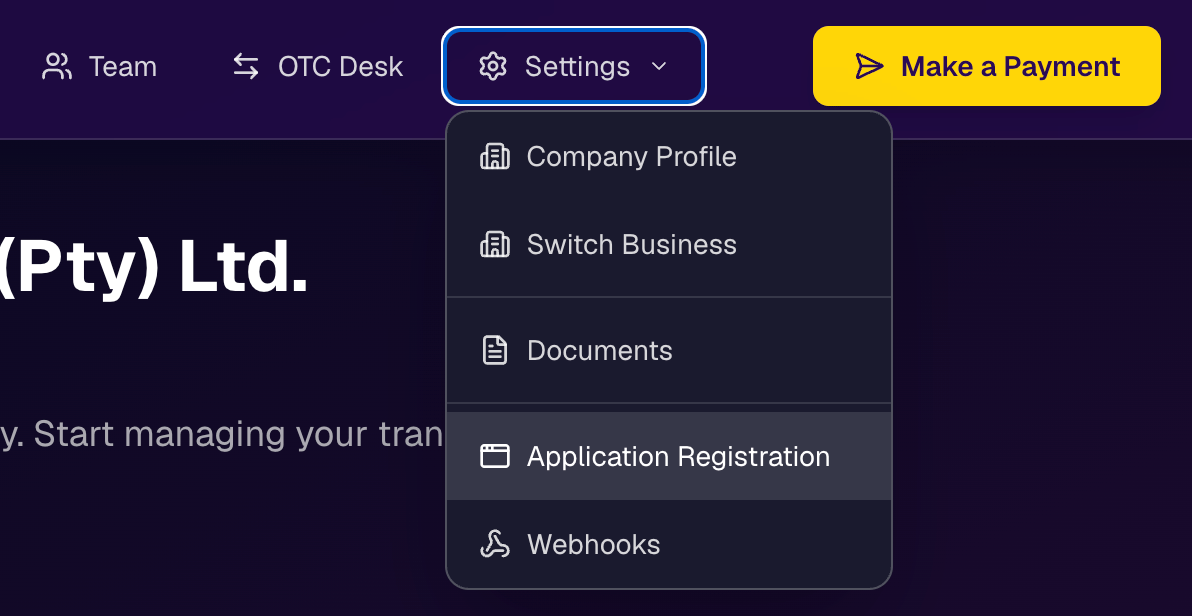
Sign in to the business portal, open the **Settings** menu, and choose
**Application Registration**.
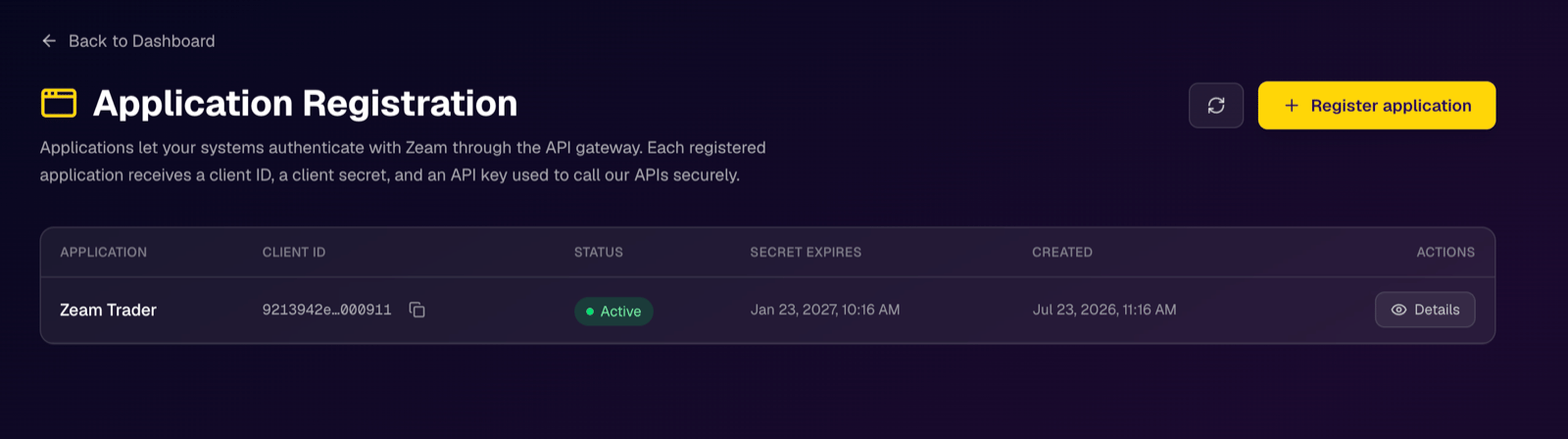
 The Application Registration page lists your existing applications with their
**Client ID**, **Status**, **Secret expires**, and **Created** date. Select
**Register application** to add a new one.
The Application Registration page lists your existing applications with their
**Client ID**, **Status**, **Secret expires**, and **Created** date. Select
**Register application** to add a new one.
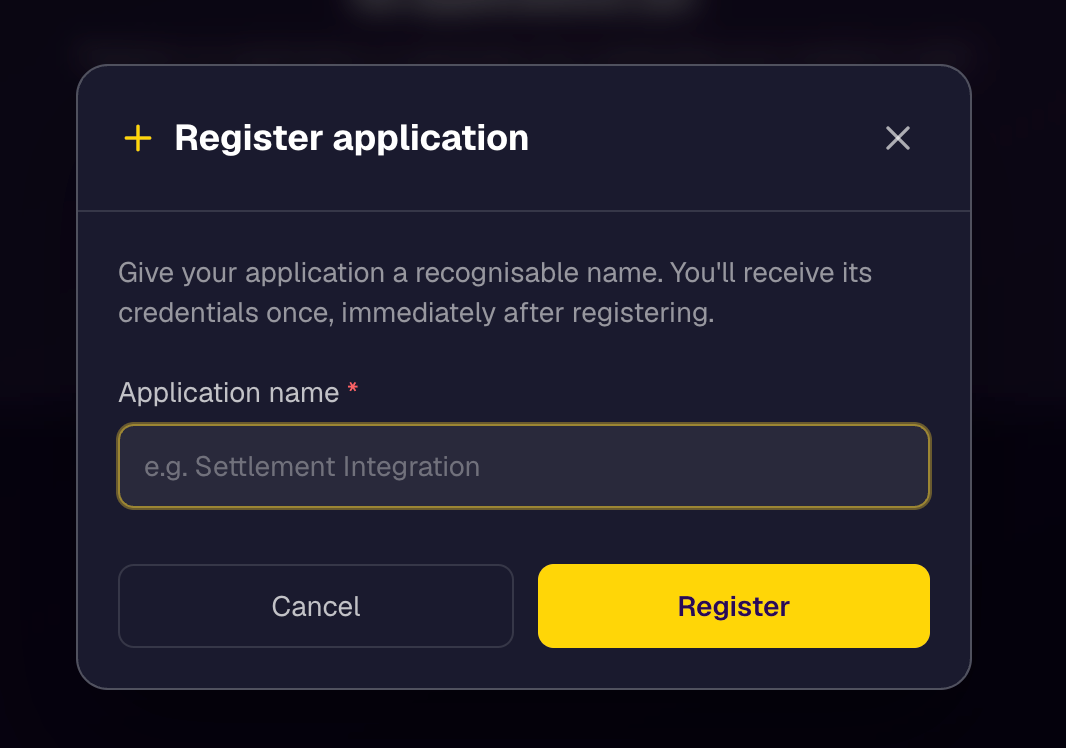
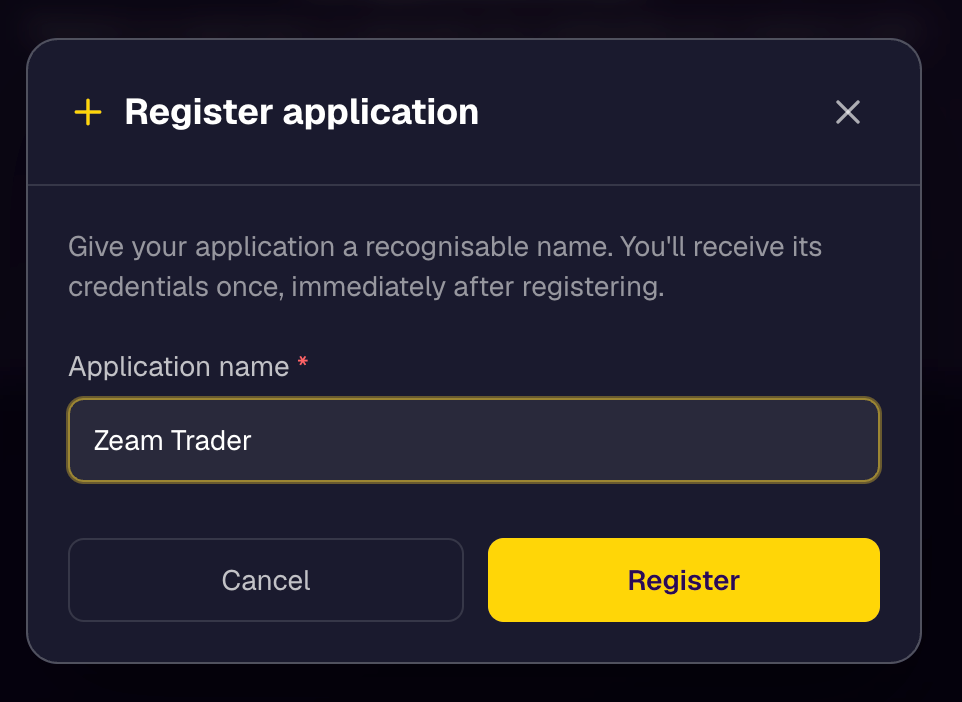
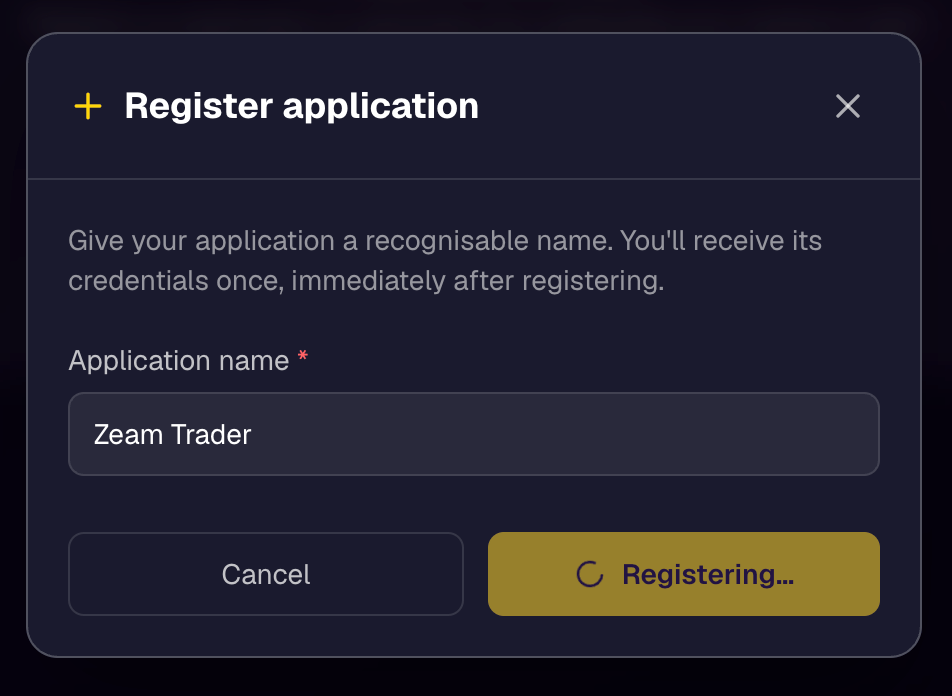
 Enter an **Application name** that you will recognise later, then select
**Register**. The name is the only field you provide.
Enter an **Application name** that you will recognise later, then select
**Register**. The name is the only field you provide.
 Registration returns the application's credentials once. Copy all three and
store them in a secure secrets manager before you close the dialog.
Registration returns the application's credentials once. Copy all three and
store them in a secure secrets manager before you close the dialog.
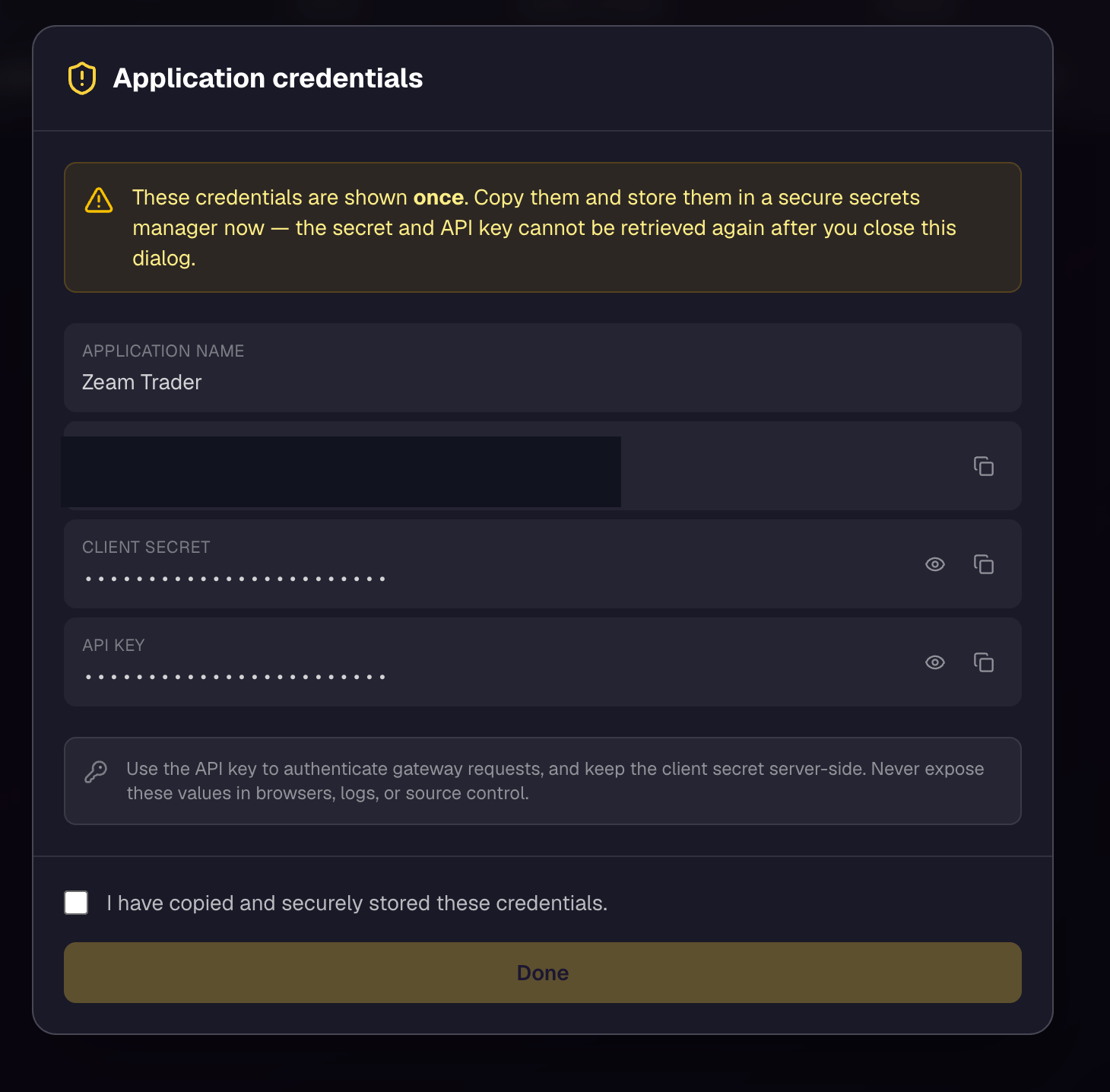 * **Client ID** (`clientId`): public identifier for the application.
* **Client secret**: used with the client ID to issue an access token.
* **API key** (`apiKey`): sent as the `x-zeam-auth` header on every request.
Select **I have copied and securely stored these credentials**, then
**Done**.
The client secret and API key are shown **once**, at registration, and cannot
be retrieved again. If you lose them, register a new application.
## Protect your credentials
* Never commit credentials to source control.
* Never expose the client secret or API key in browser-side code.
* Store credentials in a secure secrets manager, not in plain files.
* Do not share credentials through email, chat, screenshots, or support tickets.
* Keep sandbox and production credentials separate. See
[Moving to production](/access/production-promotion).
## Use the credentials to authenticate
The three credentials map to the request as follows:
* The **client ID** and **client secret** are exchanged for a bearer token at
[`POST /v1/auth/token`](/authentication/tokens). The token response includes
your `associationId`.
* The **API key** is sent as the `x-zeam-auth` header on every protected
request.
* The `associationId` from the token response is sent as the `x-association-id`
header on every protected request.
See [Authentication](/authentication/overview) for the full model, or
[Your first transaction](/guides/your-first-transaction) for a worked example.
## Environment and status
* **Environment**: new applications start in the [sandbox](/access/sandbox).
* **Status**: an application shows as **Active** once registered.
* **Secret expiry**: the **Secret expires** column shows when the current client
secret expires.
## Prepare for production
When your integration works end to end in the sandbox, follow
[Moving to production](/access/production-promotion) to request production
access and credentials.
* **Client ID** (`clientId`): public identifier for the application.
* **Client secret**: used with the client ID to issue an access token.
* **API key** (`apiKey`): sent as the `x-zeam-auth` header on every request.
Select **I have copied and securely stored these credentials**, then
**Done**.
The client secret and API key are shown **once**, at registration, and cannot
be retrieved again. If you lose them, register a new application.
## Protect your credentials
* Never commit credentials to source control.
* Never expose the client secret or API key in browser-side code.
* Store credentials in a secure secrets manager, not in plain files.
* Do not share credentials through email, chat, screenshots, or support tickets.
* Keep sandbox and production credentials separate. See
[Moving to production](/access/production-promotion).
## Use the credentials to authenticate
The three credentials map to the request as follows:
* The **client ID** and **client secret** are exchanged for a bearer token at
[`POST /v1/auth/token`](/authentication/tokens). The token response includes
your `associationId`.
* The **API key** is sent as the `x-zeam-auth` header on every protected
request.
* The `associationId` from the token response is sent as the `x-association-id`
header on every protected request.
See [Authentication](/authentication/overview) for the full model, or
[Your first transaction](/guides/your-first-transaction) for a worked example.
## Environment and status
* **Environment**: new applications start in the [sandbox](/access/sandbox).
* **Status**: an application shows as **Active** once registered.
* **Secret expiry**: the **Secret expires** column shows when the current client
secret expires.
## Prepare for production
When your integration works end to end in the sandbox, follow
[Moving to production](/access/production-promotion) to request production
access and credentials.