Create an application in the Zeam business portal and receive your sandbox credentials.
An application is how your systems authenticate with Zeam. Registering one
returns a set of application credentials: a client
ID, a client secret, and an API key. New applications are issued
sandbox credentials by default.
Access to the Zeam business portal for your company.
Permission to manage applications for the business. If you do not have it, ask
an administrator to register the application and share the credentials with
you through a secure channel.
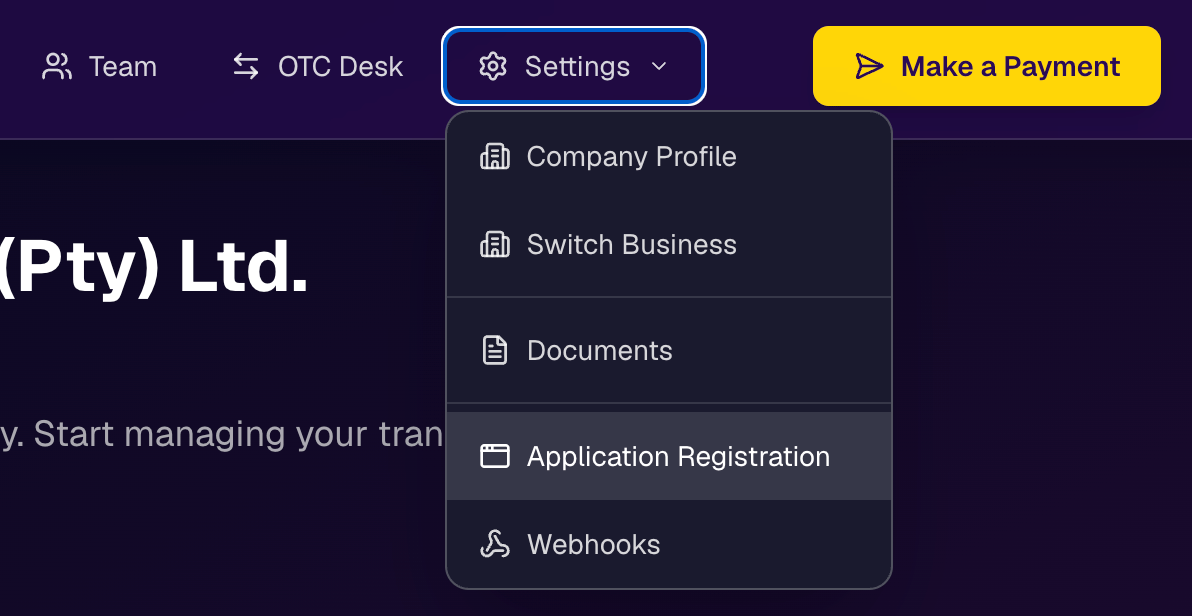
Sign in to the business portal, open the Settings menu, and choose
Application Registration.
Settings menu with Application Registration selected.
2
Review your applications
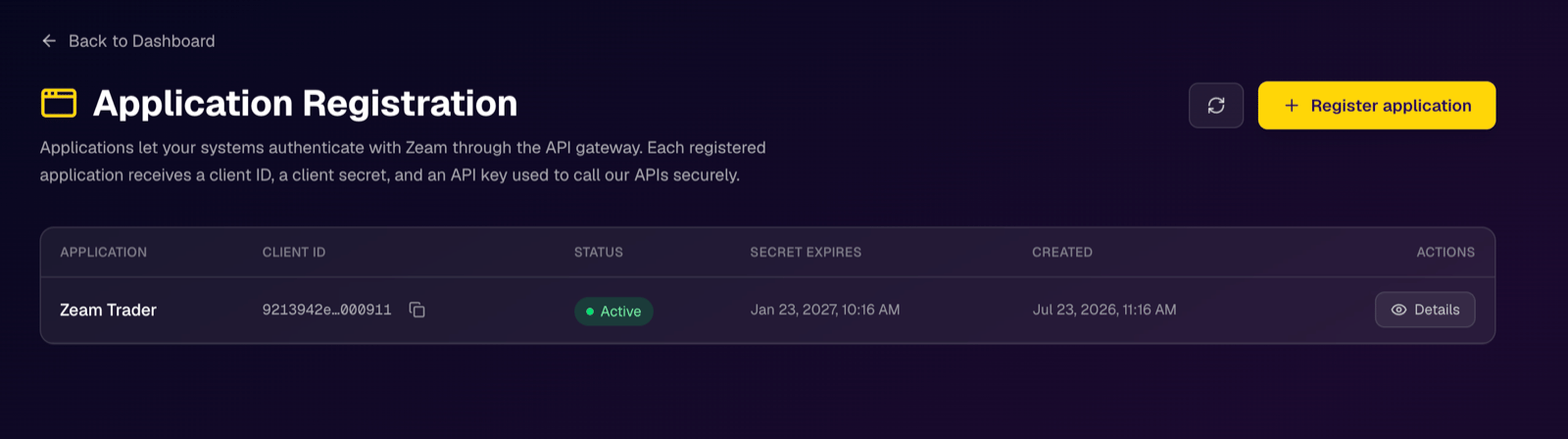
The Application Registration page lists your existing applications with their
Client ID, Status, Secret expires, and Created date. Select
Register application to add a new one.
The Application Registration page listing a registered application.
3
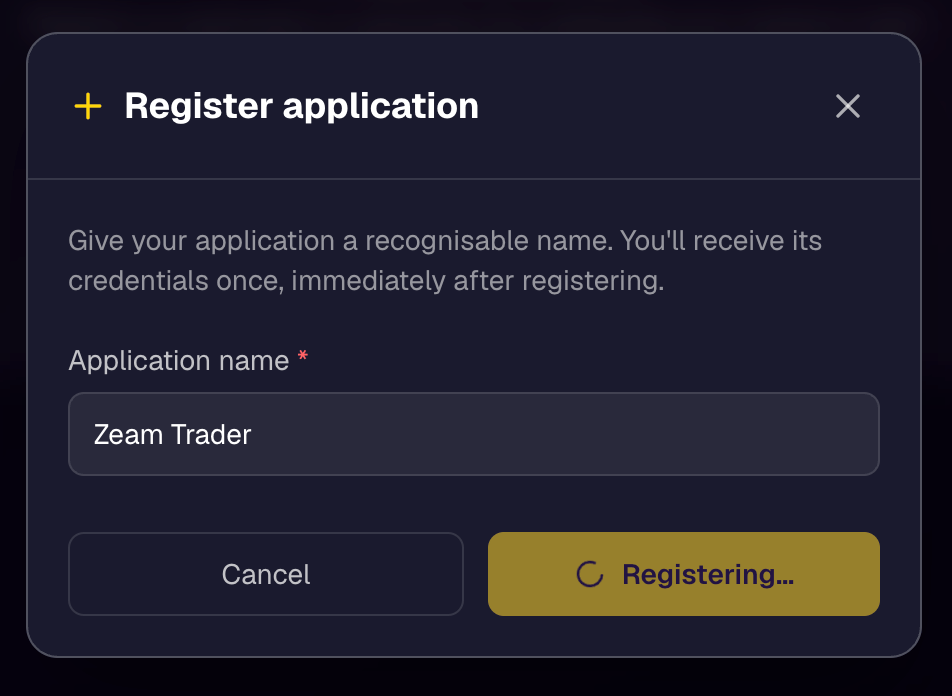
Name the application
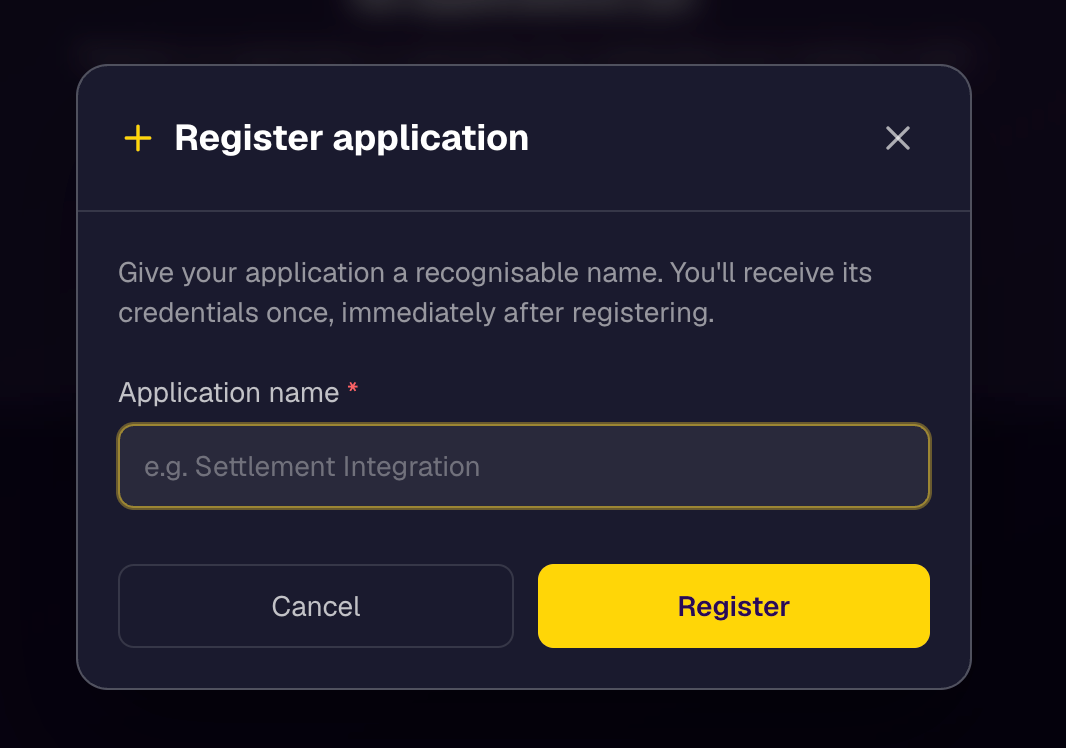
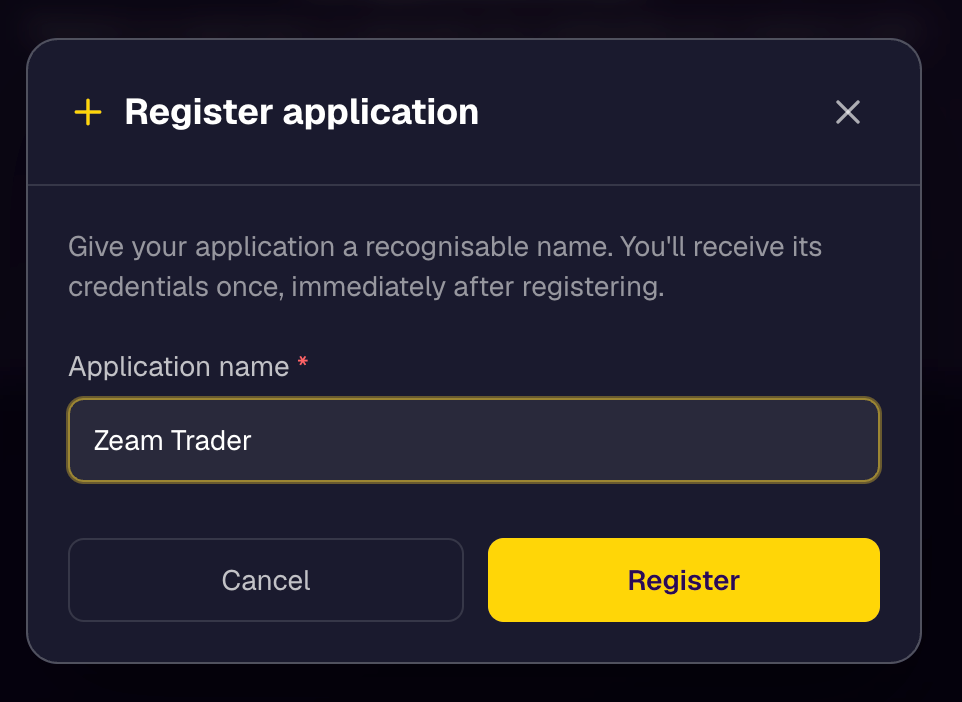
Enter an Application name that you will recognise later, then select
Register. The name is the only field you provide.
The Register application dialog before entering a name.
The Register application dialog with a name entered.
The dialog while the application is being registered.
4
Copy your credentials
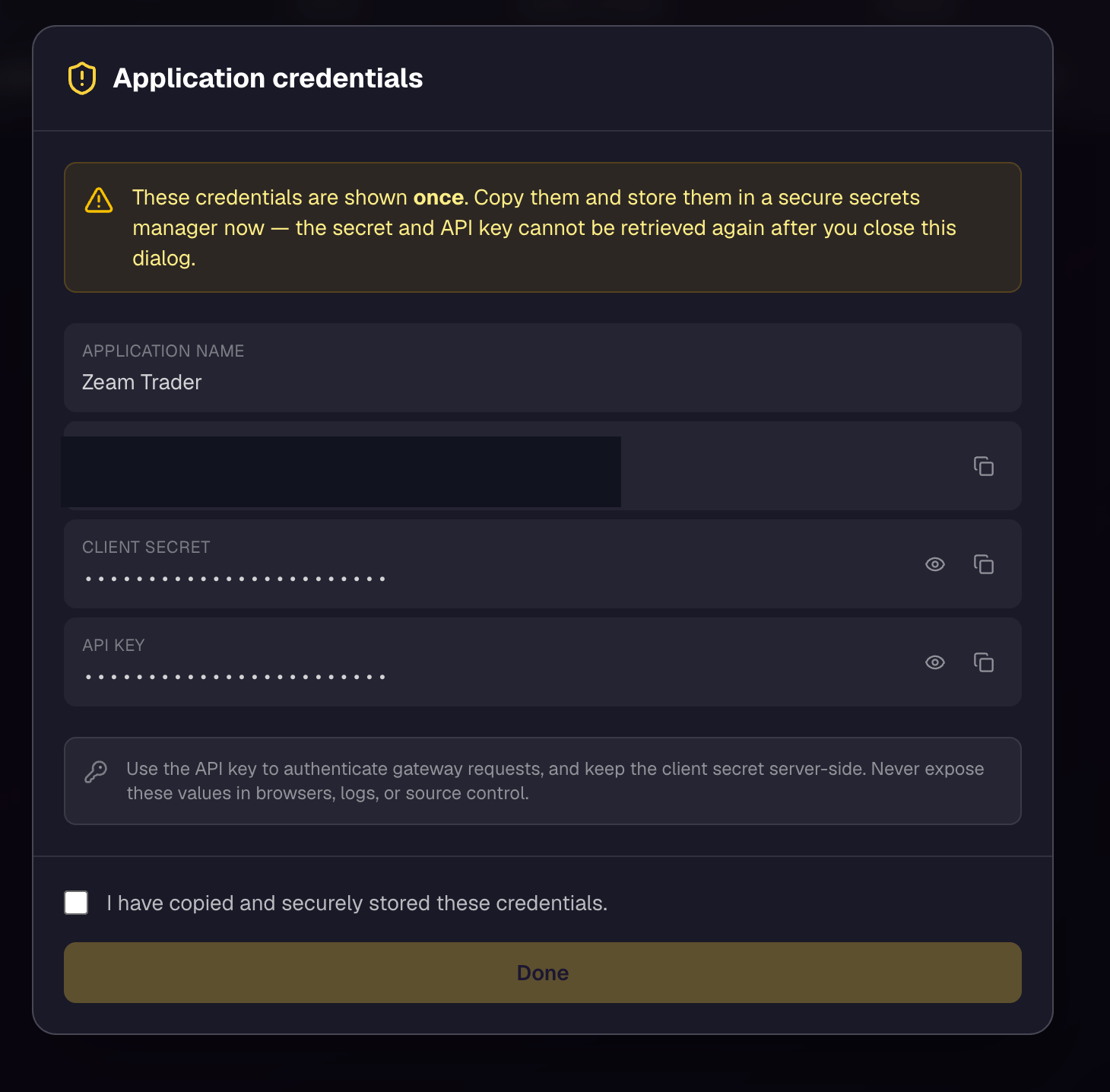
Registration returns the application’s credentials once. Copy all three and
store them in a secure secrets manager before you close the dialog.
The one-time application credentials dialog. The client ID is redacted here.
Client ID (clientId): public identifier for the application.
Client secret: used with the client ID to issue an access token.
API key (apiKey): sent as the x-zeam-auth header on every request.
Select I have copied and securely stored these credentials, then
Done.
The client secret and API key are shown once, at registration, and cannot
be retrieved again. If you lose them, register a new application.
The three credentials map to the request as follows:
The client ID and client secret are exchanged for a bearer token at
POST /v1/auth/token. The token response includes
your associationId.
The API key is sent as the x-zeam-auth header on every request,
including token issuance.
The associationId from the token response is informational only — the
gateway resolves your association server-side from the bearer token, so
there is no association header to send.
When your integration works end to end in the sandbox, follow
Moving to production to request production
access and credentials.
{"docsConfig":{"theme":"sequoia","$schema":"https://mintlify.com/docs.json","name":"Zeam API Gateway","description":"Developer documentation for the Zeam API Gateway, the single REST surface for registered integrators building on the Zeam platform.","colors":{"primary":"#4C168D","light":"#C4A5F0","dark":"#380772"},"logo":{"light":"https://mintcdn.com/paytectechnologies/WyAhZYVCps_CidFy/logo/light.svg?fit=max\u0026auto=format\u0026n=WyAhZYVCps_CidFy\u0026q=85\u0026s=2779e34b209e5807663add0448f09d4f","dark":"https://mintcdn.com/paytectechnologies/WyAhZYVCps_CidFy/logo/dark.svg?fit=max\u0026auto=format\u0026n=WyAhZYVCps_CidFy\u0026q=85\u0026s=5d31321c407fa9eb6574efb557dd2048","href":"/"},"favicon":"https://mintcdn.com/paytectechnologies/sfWS5ZfpQZ4h7FBS/favicon.png?fit=max\u0026auto=format\u0026n=sfWS5ZfpQZ4h7FBS\u0026q=85\u0026s=eb46f77ac704c1890ab20c834639fe6a","api":{"openapi":"api-reference/openapi.yaml","playground":{"display":"interactive"},"examples":{"languages":["curl"]}},"appearance":{"default":"system"},"background":{"color":{"light":"#F8F9FC","dark":"#181D27"}},"navbar":{"links":[{"href":"https://status.zeam.money","label":"Status"}],"primary":{"type":"button","label":"Get API access","href":"mailto:developers@zeam.money"}},"footer":{"socials":{"x":"https://x.com/zeam","github":"https://github.com/ZeamMoney"},"links":[{"header":"Get started","items":[{"label":"Introduction","href":"/introduction"},{"label":"Quickstart","href":"/quickstart"},{"label":"API concepts","href":"/concepts"}]},{"header":"Reference","items":[{"label":"API reference","href":"/api-reference/introduction"},{"label":"Authentication","href":"/authentication/overview"},{"label":"Errors","href":"/platform/errors"}]},{"header":"Resources","items":[{"label":"Webhooks","href":"/webhooks/overview"},{"label":"Support","href":"/resources/support"},{"label":"Changelog","href":"/changelog"}]}]},"search":{"prompt":"Search the Zeam API docs"},"seo":{"indexing":"navigable"},"fonts":{"heading":{"family":"Epilogue","weight":700},"body":{"family":"Inter","weight":400}},"icons":{"library":"lucide"},"styling":{"eyebrows":"breadcrumbs","codeblocks":{"theme":{"light":"github-light","dark":"one-dark-pro"}},"latex":false},"banner":{"content":"The Zeam API Gateway is in active development. Endpoints and contracts may change, see the [changelog](/changelog).","dismissible":true},"contextual":{"options":["copy","view","mcp","cursor","vscode"],"display":"header"},"navigation":{"global":{"anchors":[{"anchor":"API reference","icon":"terminal","href":"/api-reference/introduction"},{"anchor":"Changelog","icon":"list","href":"/changelog"}]},"pages":[]}},"deployment":{"deploymentMetadataValue":{"subdomain":"paytectechnologies","hasAudioNarration":false,"actualSubdomain":"paytectechnologies","customDomains":["docs.zeam.money"],"gitSource":{"type":"github","owner":"beammoney","repo":"api-gateway-v2.zeam.go","deployBranch":"main","contentDirectory":"documents/mintlify","isPrivate":true,"mountPath":"","label":""},"chroma":{"collectionId":"ec804779-45d5-49ba-a291-f71600bb5d24","liveDeploymentHistoryId":"6ac12f0c09f39c0017f7a3f9","schemaVersion":"v3","latestBuiltDeploymentHistoryId":"6ac12f0c09f39c0017f7a3f9"},"entitlements":{"AI_CHAT":{"status":"DISABLED"}},"buildId":"6ac12f0c09f39c0017f7a3f9","clientVersion":"0.0.3966","searchFilterCounts":[{"language":"default","tag":"API reference","count":38},{"language":"default","tag":"Guides","count":21},{"language":"default","tag":"Webhooks","count":9},{"language":"default","tag":"Payments","count":8},{"language":"default","tag":"Beneficiaries","count":7},{"language":"default","tag":"Get started","count":6},{"language":"default","tag":"Onramp references","count":6},{"language":"default","tag":"Resources","count":5},{"language":"default","tag":"Platform","count":4},{"language":"default","tag":"Authentication","count":3}]},"assistantConfig":{"enableAskAiButton":false,"enableStarterQuestions":false,"enableContextualStarterQuestions":false,"enableAskAiSearchBar":true},"hasChatPermissions":false,"hasWebMcpPermissions":false,"toggles":[{"name":"kill-isr","enabled":true,"variant":{"name":"disabled","enabled":false,"feature_enabled":true},"impressionData":false},{"name":"agent-mintlify-slack","enabled":true,"variant":{"name":"disabled","enabled":false,"feature_enabled":true},"impressionData":false},{"name":"editor-v7-file-tree","enabled":true,"variant":{"name":"disabled","enabled":false,"feature_enabled":true},"impressionData":false},{"name":"agent-integrations-settings","enabled":true,"variant":{"name":"disabled","enabled":false,"feature_enabled":true},"impressionData":false},{"name":"automations-pr-grouping","enabled":true,"variant":{"name":"disabled","enabled":false,"feature_enabled":true},"impressionData":false},{"name":"custom-prefix","enabled":true,"variant":{"name":"disabled","enabled":false,"feature_enabled":true},"impressionData":false},{"name":"analytics-v7","enabled":true,"variant":{"name":"disabled","enabled":false,"feature_enabled":true},"impressionData":false},{"name":"user-flows-analytics","enabled":true,"variant":{"name":"disabled","enabled":false,"feature_enabled":true},"impressionData":false},{"name":"no-publish-flow","enabled":true,"variant":{"name":"disabled","enabled":false,"feature_enabled":true},"impressionData":false},{"name":"workos-onboarding","enabled":true,"variant":{"name":"disabled","enabled":false,"feature_enabled":true},"impressionData":false},{"name":"llms-txt-v2","enabled":true,"variant":{"name":"disabled","enabled":false,"feature_enabled":true},"impressionData":false},{"name":"pause-universal-search-reconcile","enabled":true,"variant":{"name":"disabled","enabled":false,"feature_enabled":true},"impressionData":false},{"name":"snapshot-serving-live","enabled":true,"variant":{"name":"disabled","enabled":false,"feature_enabled":true},"impressionData":false},{"name":"stripTemperatureMiddleware","enabled":true,"variant":{"name":"disabled","enabled":false,"feature_enabled":true},"impressionData":false},{"name":"per-site-search-delta","enabled":true,"variant":{"name":"disabled","enabled":false,"feature_enabled":true},"impressionData":false},{"name":"support-platform-pylon-zendesk","enabled":true,"variant":{"name":"disabled","enabled":false,"feature_enabled":true},"impressionData":false},{"name":"snapshot-serving","enabled":true,"variant":{"name":"disabled","enabled":false,"feature_enabled":true},"impressionData":false},{"name":"instant-rollback","enabled":true,"variant":{"name":"disabled","enabled":false,"feature_enabled":true},"impressionData":false},{"name":"granular-notifications-server","enabled":true,"variant":{"name":"disabled","enabled":false,"feature_enabled":true},"impressionData":false},{"name":"granular-notifications","enabled":true,"variant":{"name":"disabled","enabled":false,"feature_enabled":true},"impressionData":false},{"name":"editor-private-page-search","enabled":true,"variant":{"name":"disabled","enabled":false,"feature_enabled":true},"impressionData":false},{"name":"automations-fable","enabled":true,"variant":{"name":"disabled","enabled":false,"feature_enabled":true},"impressionData":false},{"name":"fixed-ai-action-pricing","enabled":true,"variant":{"name":"disabled","enabled":false,"feature_enabled":true},"impressionData":false},{"name":"automation-resolve-merge-conflict","enabled":true,"variant":{"name":"disabled","enabled":false,"feature_enabled":true},"impressionData":false},{"name":"scoped-publishing","enabled":true,"variant":{"name":"disabled","enabled":false,"feature_enabled":true},"impressionData":false},{"name":"mintql","enabled":true,"variant":{"name":"disabled","enabled":false,"feature_enabled":true},"impressionData":false},{"name":"page-level-analytics","enabled":true,"variant":{"name":"disabled","enabled":false,"feature_enabled":true},"impressionData":false},{"name":"editor-version-history-v2","enabled":true,"variant":{"name":"disabled","enabled":false,"feature_enabled":true},"impressionData":false},{"name":"editor-nav-generations","enabled":true,"variant":{"name":"disabled","enabled":false,"feature_enabled":true},"impressionData":false},{"name":"billing-page-v2","enabled":true,"variant":{"name":"disabled","enabled":false,"feature_enabled":true},"impressionData":false},{"name":"workspace-projects","enabled":true,"variant":{"name":"disabled","enabled":false,"feature_enabled":true},"impressionData":false},{"name":"assistant-v5","enabled":true,"variant":{"name":"disabled","enabled":false,"feature_enabled":true},"impressionData":false},{"name":"byok-sep-25","enabled":true,"variant":{"name":"disabled","enabled":false,"feature_enabled":true},"impressionData":false},{"name":"fork-pr-previews","enabled":true,"variant":{"name":"disabled","enabled":false,"feature_enabled":true},"impressionData":false},{"name":"revalidation-jwt","enabled":true,"variant":{"name":"disabled","enabled":false,"feature_enabled":true},"impressionData":false},{"name":"vite-origin","enabled":true,"variant":{"name":"disabled","enabled":false,"feature_enabled":true},"impressionData":false},{"name":"editor-agent-model-picker","enabled":true,"variant":{"name":"disabled","enabled":false,"feature_enabled":true},"impressionData":false},{"name":"billing-updated-9-15","enabled":true,"variant":{"name":"disabled","enabled":false,"feature_enabled":true},"impressionData":false},{"name":"hobby-abuse-scan","enabled":true,"variant":{"name":"disabled","enabled":false,"feature_enabled":true},"impressionData":false},{"name":"dashboard-inbox","enabled":true,"variant":{"name":"disabled","enabled":false,"feature_enabled":true},"impressionData":false}],"isAtlas":false,"googleFontsInlined":true},"customCss":[{"filePath":"custom.css","content":":root{--zeam-primary:#4C168D;--zeam-primary-deep:#380772;--zeam-lilac:#5A1AA6;--zeam-baby-purple:#9431E0;--zeam-accent:#FFE403;--zeam-canvas:#F8F9FC;--zeam-surface:#FFFFFF;--zeam-ink:#181D27;--zeam-muted:#717680;--zeam-hairline:#DCE0E3;--zeam-surface-tint:#F3E8FF;--zeam-rounded-sm:6px;--zeam-rounded-md:10px;--zeam-rounded-full:9999px}.card:hover,[class*=Card] a:hover{border-color:var(--zeam-primary);box-shadow:0 1px 3px rgba(24,29,39,.06);transition:box-shadow .2s ease-out,border-color .2s ease-out}@media (prefers-color-scheme:dark){.card:hover,[class*=Card] a:hover{box-shadow:0 1px 3px rgba(0,0,0,.28)}}[class*=Banner],[class*=banner]{border-bottom:2px solid var(--zeam-accent)}[class*=Check],[class*=Info],[class*=Note],[class*=Tip],[class*=Warning],pre[class*=language-]{border-radius:var(--zeam-rounded-sm)}.mermaid{font-family:\"Inter\",system-ui,sans-serif}[class*=SearchBar]:hover,button[aria-label=Search]:hover{border-color:var(--zeam-primary)}html{scroll-behavior:smooth}"}],"page":{"pagePath":"guides/register-your-application","slug":"/guides/register-your-application","pageMetadata":{"title":"Register your application","description":"Create an application in the Zeam business portal and receive your sandbox credentials.","href":"/guides/register-your-application"},"description":{"compiledSource":"\"use strict\";\nconst {jsx: _jsx} = arguments[0];\nconst {useMDXComponents: _provideComponents} = arguments[0];\nfunction _createMdxContent(props) {\n const _components = {\n p: \"p\",\n ..._provideComponents(),\n ...props.components\n };\n return _jsx(_components.p, {\n children: \"Create an application in the Zeam business portal and receive your sandbox credentials.\"\n });\n}\nfunction MDXContent(props = {}) {\n const {wrapper: MDXLayout} = {\n ..._provideComponents(),\n ...props.components\n };\n return MDXLayout ? _jsx(MDXLayout, {\n ...props,\n children: _jsx(_createMdxContent, {\n ...props\n })\n }) : _createMdxContent(props);\n}\nreturn {\n default: MDXContent\n};\n","frontmatter":{},"scope":{}},"pageType":"default","mdx":{"mdxSource":{"compiledSource":"\"use strict\";const{Fragment:_Fragment,jsx:_jsx,jsxs:_jsxs}=arguments[0];const{useMDXComponents:_provideComponents}=arguments[0];function _createMdxContent(props){const _components={a:`a`,code:`code`,li:`li`,p:`p`,strong:`strong`,ul:`ul`,..._provideComponents(),...props.components},{Frame,Heading,OptimizedImage,Step,Steps,Warning}=_components;if(!Frame)_missingMdxReference(`Frame`,true);if(!Heading)_missingMdxReference(`Heading`,true);if(!OptimizedImage)_missingMdxReference(`OptimizedImage`,true);if(!Step)_missingMdxReference(`Step`,true);if(!Steps)_missingMdxReference(`Steps`,true);if(!Warning)_missingMdxReference(`Warning`,true);return _jsxs(_Fragment,{children:[_jsxs(_components.p,{children:[`An `,_jsx(_components.strong,{children:`application`}),` is how your systems authenticate with Zeam. Registering one\nreturns a set of `,_jsx(_components.a,{href:`/authentication/api-keys`,children:`application credentials`}),`: a client\nID, a client secret, and an API key. New applications are issued\n`,_jsx(_components.a,{href:`/access/sandbox`,children:`sandbox`}),` credentials by default.`]}),`\n`,_jsx(Heading,{level:`2`,id:`before-you-start`,children:`Before you start`}),`\n`,_jsxs(_components.ul,{children:[`\n`,_jsx(_components.li,{children:`Access to the Zeam business portal for your company.`}),`\n`,_jsx(_components.li,{children:`Permission to manage applications for the business. If you do not have it, ask\nan administrator to register the application and share the credentials with\nyou through a secure channel.`}),`\n`]}),`\n`,_jsx(Heading,{level:`2`,id:`register-an-application`,children:`Register an application`}),`\n`,_jsxs(Steps,{children:[_jsxs(Step,{title:`Open Application Registration`,children:[_jsxs(_components.p,{children:[`Sign in to the business portal, open the `,_jsx(_components.strong,{children:`Settings`}),` menu, and choose\n`,_jsx(_components.strong,{children:`Application Registration`}),`.`]}),_jsx(Frame,{caption:`Settings menu with Application Registration selected.`,children:_jsx(OptimizedImage,{src:`https://mintcdn.com/paytectechnologies/NqhoOkOWg2Ny5E8p/images/application-registration/settings-menu.png?fit=max\u0026auto=format\u0026n=NqhoOkOWg2Ny5E8p\u0026q=85\u0026s=ebd187cafa2956dd7024cc9112514d8e`,alt:`The business portal Settings dropdown menu with the Application Registration item highlighted.`,\"data-og-width\":`1192`,width:`1192`,\"data-og-height\":`616`,height:`616`,\"data-path\":`images/application-registration/settings-menu.png`,\"data-optimize\":`true`,\"data-opv\":`3`,srcset:`https://mintcdn.com/paytectechnologies/NqhoOkOWg2Ny5E8p/images/application-registration/settings-menu.png?w=280\u0026fit=max\u0026auto=format\u0026n=NqhoOkOWg2Ny5E8p\u0026q=85\u0026s=eb04597a7794a2abc929073df751ba4d 280w, https://mintcdn.com/paytectechnologies/NqhoOkOWg2Ny5E8p/images/application-registration/settings-menu.png?w=560\u0026fit=max\u0026auto=format\u0026n=NqhoOkOWg2Ny5E8p\u0026q=85\u0026s=419e9e8f417bfda9bad94e6d3f5efd9c 560w, https://mintcdn.com/paytectechnologies/NqhoOkOWg2Ny5E8p/images/application-registration/settings-menu.png?w=840\u0026fit=max\u0026auto=format\u0026n=NqhoOkOWg2Ny5E8p\u0026q=85\u0026s=331fe8d0f6678d6031e509d23b272c61 840w, https://mintcdn.com/paytectechnologies/NqhoOkOWg2Ny5E8p/images/application-registration/settings-menu.png?w=1100\u0026fit=max\u0026auto=format\u0026n=NqhoOkOWg2Ny5E8p\u0026q=85\u0026s=7bb309c980d39af9172f7e2612b1a137 1100w, https://mintcdn.com/paytectechnologies/NqhoOkOWg2Ny5E8p/images/application-registration/settings-menu.png?w=1650\u0026fit=max\u0026auto=format\u0026n=NqhoOkOWg2Ny5E8p\u0026q=85\u0026s=81fa60caec1a6a50b10cdc2cf8a7e465 1650w, https://mintcdn.com/paytectechnologies/NqhoOkOWg2Ny5E8p/images/application-registration/settings-menu.png?w=2500\u0026fit=max\u0026auto=format\u0026n=NqhoOkOWg2Ny5E8p\u0026q=85\u0026s=6acc597478f61190561cb393795845ce 2500w`})})]}),_jsxs(Step,{title:`Review your applications`,children:[_jsxs(_components.p,{children:[`The Application Registration page lists your existing applications with their\n`,_jsx(_components.strong,{children:`Client ID`}),`, `,_jsx(_components.strong,{children:`Status`}),`, `,_jsx(_components.strong,{children:`Secret expires`}),`, and `,_jsx(_components.strong,{children:`Created`}),` date. Select\n`,_jsx(_components.strong,{children:`Register application`}),` to add a new one.`]}),_jsx(Frame,{caption:`The Application Registration page listing a registered application.`,children:_jsx(OptimizedImage,{src:`https://mintcdn.com/paytectechnologies/NqhoOkOWg2Ny5E8p/images/application-registration/applications-list.png?fit=max\u0026auto=format\u0026n=NqhoOkOWg2Ny5E8p\u0026q=85\u0026s=305688aaa1b4c49e584c73dec6add264`,alt:`The Application Registration page showing one application named Zeam Trader with a truncated client ID, an Active status, a secret expiry date, and a created date.`,\"data-og-width\":`1600`,width:`1600`,\"data-og-height\":`448`,height:`448`,\"data-path\":`images/application-registration/applications-list.png`,\"data-optimize\":`true`,\"data-opv\":`3`,srcset:`https://mintcdn.com/paytectechnologies/NqhoOkOWg2Ny5E8p/images/application-registration/applications-list.png?w=280\u0026fit=max\u0026auto=format\u0026n=NqhoOkOWg2Ny5E8p\u0026q=85\u0026s=ae1502cfb4fea992608196158119c8f7 280w, https://mintcdn.com/paytectechnologies/NqhoOkOWg2Ny5E8p/images/application-registration/applications-list.png?w=560\u0026fit=max\u0026auto=format\u0026n=NqhoOkOWg2Ny5E8p\u0026q=85\u0026s=6e4a5787ad88aecd917038f6be8bd95a 560w, https://mintcdn.com/paytectechnologies/NqhoOkOWg2Ny5E8p/images/application-registration/applications-list.png?w=840\u0026fit=max\u0026auto=format\u0026n=NqhoOkOWg2Ny5E8p\u0026q=85\u0026s=39da5c362d91cc0279e95cc1049282c9 840w, https://mintcdn.com/paytectechnologies/NqhoOkOWg2Ny5E8p/images/application-registration/applications-list.png?w=1100\u0026fit=max\u0026auto=format\u0026n=NqhoOkOWg2Ny5E8p\u0026q=85\u0026s=1a2960a05c68ade83d78aa5103e84828 1100w, https://mintcdn.com/paytectechnologies/NqhoOkOWg2Ny5E8p/images/application-registration/applications-list.png?w=1650\u0026fit=max\u0026auto=format\u0026n=NqhoOkOWg2Ny5E8p\u0026q=85\u0026s=c2a3ffafd8911ba8cd6e40d006f73a04 1650w, https://mintcdn.com/paytectechnologies/NqhoOkOWg2Ny5E8p/images/application-registration/applications-list.png?w=2500\u0026fit=max\u0026auto=format\u0026n=NqhoOkOWg2Ny5E8p\u0026q=85\u0026s=1d2b39f4fa7a438c901c4b3bd2ae1f12 2500w`})})]}),_jsxs(Step,{title:`Name the application`,children:[_jsxs(_components.p,{children:[`Enter an `,_jsx(_components.strong,{children:`Application name`}),` that you will recognise later, then select\n`,_jsx(_components.strong,{children:`Register`}),`. The name is the only field you provide.`]}),_jsx(Frame,{caption:`The Register application dialog before entering a name.`,children:_jsx(OptimizedImage,{src:`https://mintcdn.com/paytectechnologies/NqhoOkOWg2Ny5E8p/images/application-registration/register-empty.png?fit=max\u0026auto=format\u0026n=NqhoOkOWg2Ny5E8p\u0026q=85\u0026s=bd1146137e3575d847b0a914a75caa8c`,alt:`The Register application dialog with an empty Application name field showing the placeholder e.g. Settlement Integration.`,\"data-og-width\":`1066`,width:`1066`,\"data-og-height\":`748`,height:`748`,\"data-path\":`images/application-registration/register-empty.png`,\"data-optimize\":`true`,\"data-opv\":`3`,srcset:`https://mintcdn.com/paytectechnologies/NqhoOkOWg2Ny5E8p/images/application-registration/register-empty.png?w=280\u0026fit=max\u0026auto=format\u0026n=NqhoOkOWg2Ny5E8p\u0026q=85\u0026s=44f677edb103afd3729d1856c930fb3d 280w, https://mintcdn.com/paytectechnologies/NqhoOkOWg2Ny5E8p/images/application-registration/register-empty.png?w=560\u0026fit=max\u0026auto=format\u0026n=NqhoOkOWg2Ny5E8p\u0026q=85\u0026s=2bdad07758225ea9cc135d0a022c164e 560w, https://mintcdn.com/paytectechnologies/NqhoOkOWg2Ny5E8p/images/application-registration/register-empty.png?w=840\u0026fit=max\u0026auto=format\u0026n=NqhoOkOWg2Ny5E8p\u0026q=85\u0026s=361003977e51b4578a7938556055f0b5 840w, https://mintcdn.com/paytectechnologies/NqhoOkOWg2Ny5E8p/images/application-registration/register-empty.png?w=1100\u0026fit=max\u0026auto=format\u0026n=NqhoOkOWg2Ny5E8p\u0026q=85\u0026s=e773d4d00e716ddad230ced3280f13f1 1100w, https://mintcdn.com/paytectechnologies/NqhoOkOWg2Ny5E8p/images/application-registration/register-empty.png?w=1650\u0026fit=max\u0026auto=format\u0026n=NqhoOkOWg2Ny5E8p\u0026q=85\u0026s=3e7c855064ad85e9344e6c6e61603987 1650w, https://mintcdn.com/paytectechnologies/NqhoOkOWg2Ny5E8p/images/application-registration/register-empty.png?w=2500\u0026fit=max\u0026auto=format\u0026n=NqhoOkOWg2Ny5E8p\u0026q=85\u0026s=61b92ca57439c556e965f6ed5e74b8c3 2500w`})}),_jsx(Frame,{caption:`The Register application dialog with a name entered.`,children:_jsx(OptimizedImage,{src:`https://mintcdn.com/paytectechnologies/NqhoOkOWg2Ny5E8p/images/application-registration/register-filled.png?fit=max\u0026auto=format\u0026n=NqhoOkOWg2Ny5E8p\u0026q=85\u0026s=bf65723d47e002307b64593f3fa31350`,alt:`The Register application dialog with the Application name field filled in as Zeam Trader.`,\"data-og-width\":`962`,width:`962`,\"data-og-height\":`702`,height:`702`,\"data-path\":`images/application-registration/register-filled.png`,\"data-optimize\":`true`,\"data-opv\":`3`,srcset:`https://mintcdn.com/paytectechnologies/NqhoOkOWg2Ny5E8p/images/application-registration/register-filled.png?w=280\u0026fit=max\u0026auto=format\u0026n=NqhoOkOWg2Ny5E8p\u0026q=85\u0026s=a3bf3115b42f1c4c48b488b6edde226d 280w, https://mintcdn.com/paytectechnologies/NqhoOkOWg2Ny5E8p/images/application-registration/register-filled.png?w=560\u0026fit=max\u0026auto=format\u0026n=NqhoOkOWg2Ny5E8p\u0026q=85\u0026s=4ebab5ad58d9cc7e9ad158d1bf7c165e 560w, https://mintcdn.com/paytectechnologies/NqhoOkOWg2Ny5E8p/images/application-registration/register-filled.png?w=840\u0026fit=max\u0026auto=format\u0026n=NqhoOkOWg2Ny5E8p\u0026q=85\u0026s=c9941de0498701b217957b589301cd13 840w, https://mintcdn.com/paytectechnologies/NqhoOkOWg2Ny5E8p/images/application-registration/register-filled.png?w=1100\u0026fit=max\u0026auto=format\u0026n=NqhoOkOWg2Ny5E8p\u0026q=85\u0026s=edac70aa2a4f267ddab2d3b2d75e9db7 1100w, https://mintcdn.com/paytectechnologies/NqhoOkOWg2Ny5E8p/images/application-registration/register-filled.png?w=1650\u0026fit=max\u0026auto=format\u0026n=NqhoOkOWg2Ny5E8p\u0026q=85\u0026s=90e8c982c76b0f2bd090d3d698d1f2e3 1650w, https://mintcdn.com/paytectechnologies/NqhoOkOWg2Ny5E8p/images/application-registration/register-filled.png?w=2500\u0026fit=max\u0026auto=format\u0026n=NqhoOkOWg2Ny5E8p\u0026q=85\u0026s=cb13f3969cc1f58e6f2481cf6bc5f6f7 2500w`})}),_jsx(Frame,{caption:`The dialog while the application is being registered.`,children:_jsx(OptimizedImage,{src:`https://mintcdn.com/paytectechnologies/NqhoOkOWg2Ny5E8p/images/application-registration/register-submitting.png?fit=max\u0026auto=format\u0026n=NqhoOkOWg2Ny5E8p\u0026q=85\u0026s=aeaa48526c4e6143a196d1a7fab9278d`,alt:`The Register application dialog showing a Registering progress state on the Register button.`,\"data-og-width\":`952`,width:`952`,\"data-og-height\":`696`,height:`696`,\"data-path\":`images/application-registration/register-submitting.png`,\"data-optimize\":`true`,\"data-opv\":`3`,srcset:`https://mintcdn.com/paytectechnologies/NqhoOkOWg2Ny5E8p/images/application-registration/register-submitting.png?w=280\u0026fit=max\u0026auto=format\u0026n=NqhoOkOWg2Ny5E8p\u0026q=85\u0026s=505561847183c9ab4c45737946a1c0a7 280w, https://mintcdn.com/paytectechnologies/NqhoOkOWg2Ny5E8p/images/application-registration/register-submitting.png?w=560\u0026fit=max\u0026auto=format\u0026n=NqhoOkOWg2Ny5E8p\u0026q=85\u0026s=0deaea41f2ec8d420a3d349fd2b29cbe 560w, https://mintcdn.com/paytectechnologies/NqhoOkOWg2Ny5E8p/images/application-registration/register-submitting.png?w=840\u0026fit=max\u0026auto=format\u0026n=NqhoOkOWg2Ny5E8p\u0026q=85\u0026s=e557f44b9f57c6f98620d5832bd09ab2 840w, https://mintcdn.com/paytectechnologies/NqhoOkOWg2Ny5E8p/images/application-registration/register-submitting.png?w=1100\u0026fit=max\u0026auto=format\u0026n=NqhoOkOWg2Ny5E8p\u0026q=85\u0026s=d1468e86a76b22ea8a60c7415af46348 1100w, https://mintcdn.com/paytectechnologies/NqhoOkOWg2Ny5E8p/images/application-registration/register-submitting.png?w=1650\u0026fit=max\u0026auto=format\u0026n=NqhoOkOWg2Ny5E8p\u0026q=85\u0026s=3f575c845ba137ced0354fa9ab0b078f 1650w, https://mintcdn.com/paytectechnologies/NqhoOkOWg2Ny5E8p/images/application-registration/register-submitting.png?w=2500\u0026fit=max\u0026auto=format\u0026n=NqhoOkOWg2Ny5E8p\u0026q=85\u0026s=7e5549bffdb804f0d865c0c126b26625 2500w`})})]}),_jsxs(Step,{title:`Copy your credentials`,children:[_jsx(_components.p,{children:`Registration returns the application’s credentials once. Copy all three and\nstore them in a secure secrets manager before you close the dialog.`}),_jsx(Frame,{caption:`The one-time application credentials dialog. The client ID is redacted here.`,children:_jsx(OptimizedImage,{src:`https://mintcdn.com/paytectechnologies/NqhoOkOWg2Ny5E8p/images/application-registration/credentials.png?fit=max\u0026auto=format\u0026n=NqhoOkOWg2Ny5E8p\u0026q=85\u0026s=065a50d7334403621023e084bfb51598`,alt:`The Application credentials dialog for Zeam Trader, showing a one-time warning, the application name, a redacted client ID, a masked client secret, and a masked API key, with a confirmation checkbox and a Done button.`,\"data-og-width\":`1460`,width:`1460`,\"data-og-height\":`1436`,height:`1436`,\"data-path\":`images/application-registration/credentials.png`,\"data-optimize\":`true`,\"data-opv\":`3`,srcset:`https://mintcdn.com/paytectechnologies/NqhoOkOWg2Ny5E8p/images/application-registration/credentials.png?w=280\u0026fit=max\u0026auto=format\u0026n=NqhoOkOWg2Ny5E8p\u0026q=85\u0026s=d53157ba6daf59575fab882dd6c32de5 280w, https://mintcdn.com/paytectechnologies/NqhoOkOWg2Ny5E8p/images/application-registration/credentials.png?w=560\u0026fit=max\u0026auto=format\u0026n=NqhoOkOWg2Ny5E8p\u0026q=85\u0026s=c062789691bbd294a28954025a9605d9 560w, https://mintcdn.com/paytectechnologies/NqhoOkOWg2Ny5E8p/images/application-registration/credentials.png?w=840\u0026fit=max\u0026auto=format\u0026n=NqhoOkOWg2Ny5E8p\u0026q=85\u0026s=3b37816edc4753a9a32a9c824e7b16db 840w, https://mintcdn.com/paytectechnologies/NqhoOkOWg2Ny5E8p/images/application-registration/credentials.png?w=1100\u0026fit=max\u0026auto=format\u0026n=NqhoOkOWg2Ny5E8p\u0026q=85\u0026s=9ed883d359828aa575d7f919b805de76 1100w, https://mintcdn.com/paytectechnologies/NqhoOkOWg2Ny5E8p/images/application-registration/credentials.png?w=1650\u0026fit=max\u0026auto=format\u0026n=NqhoOkOWg2Ny5E8p\u0026q=85\u0026s=215932b7a794542b38dc2bbd8f0dca13 1650w, https://mintcdn.com/paytectechnologies/NqhoOkOWg2Ny5E8p/images/application-registration/credentials.png?w=2500\u0026fit=max\u0026auto=format\u0026n=NqhoOkOWg2Ny5E8p\u0026q=85\u0026s=d49ea85615232c6b5d744b307b441a17 2500w`})}),_jsxs(_components.ul,{children:[`\n`,_jsxs(_components.li,{children:[_jsx(_components.strong,{children:`Client ID`}),` (`,_jsx(_components.code,{children:`clientId`}),`): public identifier for the application.`]}),`\n`,_jsxs(_components.li,{children:[_jsx(_components.strong,{children:`Client secret`}),`: used with the client ID to issue an access token.`]}),`\n`,_jsxs(_components.li,{children:[_jsx(_components.strong,{children:`API key`}),` (`,_jsx(_components.code,{children:`apiKey`}),`): sent as the `,_jsx(_components.code,{children:`x-zeam-auth`}),` header on every request.`]}),`\n`]}),_jsxs(_components.p,{children:[`Select `,_jsx(_components.strong,{children:`I have copied and securely stored these credentials`}),`, then\n`,_jsx(_components.strong,{children:`Done`}),`.`]})]})]}),`\n`,_jsx(Warning,{children:_jsxs(_components.p,{children:[`The client secret and API key are shown `,_jsx(_components.strong,{children:`once`}),`, at registration, and cannot\nbe retrieved again. If you lose them, register a new application.`]})}),`\n`,_jsx(Heading,{level:`2`,id:`protect-your-credentials`,children:`Protect your credentials`}),`\n`,_jsxs(_components.ul,{children:[`\n`,_jsx(_components.li,{children:`Never commit credentials to source control.`}),`\n`,_jsx(_components.li,{children:`Never expose the client secret or API key in browser-side code.`}),`\n`,_jsx(_components.li,{children:`Store credentials in a secure secrets manager, not in plain files.`}),`\n`,_jsx(_components.li,{children:`Do not share credentials through email, chat, screenshots, or support tickets.`}),`\n`,_jsxs(_components.li,{children:[`Keep sandbox and production credentials separate. See\n`,_jsx(_components.a,{href:`/access/production-promotion`,children:`Moving to production`}),`.`]}),`\n`]}),`\n`,_jsx(Heading,{level:`2`,id:`use-the-credentials-to-authenticate`,children:`Use the credentials to authenticate`}),`\n`,_jsx(_components.p,{children:`The three credentials map to the request as follows:`}),`\n`,_jsxs(_components.ul,{children:[`\n`,_jsxs(_components.li,{children:[`The `,_jsx(_components.strong,{children:`client ID`}),` and `,_jsx(_components.strong,{children:`client secret`}),` are exchanged for a bearer token at\n`,_jsx(_components.a,{href:`/authentication/tokens`,children:_jsx(_components.code,{children:`POST /v1/auth/token`})}),`. The token response includes\nyour `,_jsx(_components.code,{children:`associationId`}),`.`]}),`\n`,_jsxs(_components.li,{children:[`The `,_jsx(_components.strong,{children:`API key`}),` is sent as the `,_jsx(_components.code,{children:`x-zeam-auth`}),` header on every request,\nincluding token issuance.`]}),`\n`,_jsxs(_components.li,{children:[`The `,_jsx(_components.code,{children:`associationId`}),` from the token response is informational only — the\ngateway resolves your association server-side from the bearer token, so\nthere is no association header to send.`]}),`\n`]}),`\n`,_jsxs(_components.p,{children:[`See `,_jsx(_components.a,{href:`/authentication/overview`,children:`Authentication`}),` for the full model, or\n`,_jsx(_components.a,{href:`/guides/your-first-transaction`,children:`Your first transaction`}),` for a worked example.`]}),`\n`,_jsx(Heading,{level:`2`,id:`environment-and-status`,children:`Environment and status`}),`\n`,_jsxs(_components.ul,{children:[`\n`,_jsxs(_components.li,{children:[_jsx(_components.strong,{children:`Environment`}),`: new applications start in the `,_jsx(_components.a,{href:`/access/sandbox`,children:`sandbox`}),`.`]}),`\n`,_jsxs(_components.li,{children:[_jsx(_components.strong,{children:`Status`}),`: an application shows as `,_jsx(_components.strong,{children:`Active`}),` once registered.`]}),`\n`,_jsxs(_components.li,{children:[_jsx(_components.strong,{children:`Secret expiry`}),`: the `,_jsx(_components.strong,{children:`Secret expires`}),` column shows when the current client\nsecret expires.`]}),`\n`]}),`\n`,_jsx(Heading,{level:`2`,id:`prepare-for-production`,children:`Prepare for production`}),`\n`,_jsxs(_components.p,{children:[`When your integration works end to end in the sandbox, follow\n`,_jsx(_components.a,{href:`/access/production-promotion`,children:`Moving to production`}),` to request production\naccess and credentials.`]})]})}function MDXContent(props={}){const{wrapper:MDXLayout}={..._provideComponents(),...props.components};return MDXLayout?_jsx(MDXLayout,{...props,children:_jsx(_createMdxContent,{...props})}):_createMdxContent(props)}return{default:MDXContent};function _missingMdxReference(id,component){throw new Error(`Expected `+(component?`component`:`object`)+\" `\"+id+\"` to be defined: you likely forgot to import, pass, or provide it.\")}","frontmatter":{},"scope":{"codeStyling":{"theme":{"light":"github-light","dark":"one-dark-pro"}},"config":{},"pageMetadata":{"title":"Register your application","description":"Create an application in the Zeam business portal and receive your sandbox credentials.","href":"/guides/register-your-application"}}},"mdxSourceWithNoJs":null},"mdxExtracts":{"tableOfContents":[{"title":"Before you start","slug":"before-you-start","depth":2,"children":[]},{"title":"Register an application","slug":"register-an-application","depth":2,"children":[]},{"title":"Protect your credentials","slug":"protect-your-credentials","depth":2,"children":[]},{"title":"Use the credentials to authenticate","slug":"use-the-credentials-to-authenticate","depth":2,"children":[]},{"title":"Environment and status","slug":"environment-and-status","depth":2,"children":[]},{"title":"Prepare for production","slug":"prepare-for-production","depth":2,"children":[]}],"codeExamples":{}},"jsLinks":[],"subdomain":"paytectechnologies","siteName":"Zeam API Gateway","title":"Register your application - Zeam API Gateway","navMaps":{"firstHrefInVersion":{},"firstHrefInLanguage":{}},"lastModified":"2026-08-25T13:04:52.488Z","originalFileLocation":"guides/register-your-application.mdx"},"headHtml":"\u003cscript data-mint-head>(function(){var d=document.documentElement,p=null;if(!p){try{p=localStorage.getItem(\"isDarkMode\")}catch(e){}if(p==='true')p='dark';else if(p==='false')p='light';if(p!=='light'\u0026\u0026p!=='dark'\u0026\u0026p!=='system')p=\"system\"}var r=p==='system'?(matchMedia(\"(prefers-color-scheme: dark)\").matches?'dark':'light'):p;d.classList.remove(r==='dark'?'light':'dark');d.classList.add(r);d.setAttribute(\"data-theme-preference\",p)})();\u003c/script>\u003cmeta data-mint-head name=\"description\" content=\"Create an application in the Zeam business portal and receive your sandbox credentials.\">\u003cmeta data-mint-head name=\"application-name\" content=\"Zeam API Gateway\">\u003cmeta data-mint-head name=\"generator\" content=\"Mintlify\">\u003clink data-mint-head rel=\"icon\" type=\"image/png\" sizes=\"192x192\" href=\"/mintlify-assets/_mintlify/favicons/paytectechnologies/Ur9gzPluDNdBU7KN/_generated/favicon/android-chrome-192x192.png\" media=\"(prefers-color-scheme: light)\">\u003clink data-mint-head rel=\"apple-touch-icon\" type=\"image/png\" sizes=\"180x180\" href=\"/mintlify-assets/_mintlify/favicons/paytectechnologies/Ur9gzPluDNdBU7KN/_generated/favicon/apple-touch-icon.png\">\u003clink data-mint-head rel=\"icon\" type=\"image/png\" sizes=\"16x16\" href=\"/mintlify-assets/_mintlify/favicons/paytectechnologies/Ur9gzPluDNdBU7KN/_generated/favicon/favicon-16x16.png\" media=\"(prefers-color-scheme: light)\">\u003clink data-mint-head rel=\"icon\" type=\"image/png\" sizes=\"32x32\" href=\"/mintlify-assets/_mintlify/favicons/paytectechnologies/Ur9gzPluDNdBU7KN/_generated/favicon/favicon-32x32.png\" media=\"(prefers-color-scheme: light)\">\u003clink data-mint-head rel=\"shortcut icon\" type=\"image/x-icon\" href=\"/mintlify-assets/_mintlify/favicons/paytectechnologies/Ur9gzPluDNdBU7KN/_generated/favicon/favicon.ico\" media=\"(prefers-color-scheme: light)\">\u003clink data-mint-head rel=\"icon\" type=\"image/png\" sizes=\"192x192\" href=\"/mintlify-assets/_mintlify/favicons/paytectechnologies/Ur9gzPluDNdBU7KN/_generated/favicon-dark/android-chrome-192x192.png\" media=\"(prefers-color-scheme: dark)\">\u003clink data-mint-head rel=\"icon\" type=\"image/png\" sizes=\"16x16\" href=\"/mintlify-assets/_mintlify/favicons/paytectechnologies/Ur9gzPluDNdBU7KN/_generated/favicon-dark/favicon-16x16.png\" media=\"(prefers-color-scheme: dark)\">\u003clink data-mint-head rel=\"icon\" type=\"image/png\" sizes=\"32x32\" href=\"/mintlify-assets/_mintlify/favicons/paytectechnologies/Ur9gzPluDNdBU7KN/_generated/favicon-dark/favicon-32x32.png\" media=\"(prefers-color-scheme: dark)\">\u003clink data-mint-head rel=\"shortcut icon\" type=\"image/x-icon\" href=\"/mintlify-assets/_mintlify/favicons/paytectechnologies/Ur9gzPluDNdBU7KN/_generated/favicon-dark/favicon.ico\" media=\"(prefers-color-scheme: dark)\">\u003cmeta data-mint-head property=\"og:title\" content=\"Register your application - Zeam API Gateway\">\u003cmeta data-mint-head property=\"og:description\" content=\"Create an application in the Zeam business portal and receive your sandbox credentials.\">\u003cmeta data-mint-head property=\"og:site_name\" content=\"Zeam API Gateway\">\u003cmeta data-mint-head property=\"og:url\" content=\"https://docs.zeam.money/guides/register-your-application\">\u003cmeta data-mint-head property=\"og:type\" content=\"website\">\u003cmeta data-mint-head property=\"og:image\" content=\"https://paytectechnologies.mintlify.app/_mintlify/api/og/v2?division=Get+started\u0026amp;title=Register+your+application\u0026amp;description=Create+an+application+in+the+Zeam+business+portal+and+receive+your+sandbox+credentials.\u0026amp;theme=7c0a4cc6ea5ae49dd472e013\u0026amp;signature=64a95662f27269c7f3736ce228edad3006523b9135dbc7ce0ae4c22bee9d04b2\">\u003cmeta data-mint-head property=\"og:image:width\" content=\"1200\">\u003cmeta data-mint-head property=\"og:image:height\" content=\"630\">\u003cmeta data-mint-head name=\"twitter:card\" content=\"summary_large_image\">\u003cmeta data-mint-head name=\"twitter:title\" content=\"Register your application - Zeam API Gateway\">\u003cmeta data-mint-head name=\"twitter:description\" content=\"Create an application in the Zeam business portal and receive your sandbox credentials.\">\u003cmeta data-mint-head name=\"twitter:image\" content=\"https://paytectechnologies.mintlify.app/_mintlify/api/og/v2?division=Get+started\u0026amp;title=Register+your+application\u0026amp;description=Create+an+application+in+the+Zeam+business+portal+and+receive+your+sandbox+credentials.\u0026amp;theme=7c0a4cc6ea5ae49dd472e013\u0026amp;signature=64a95662f27269c7f3736ce228edad3006523b9135dbc7ce0ae4c22bee9d04b2\">\u003cmeta data-mint-head name=\"twitter:image:width\" content=\"1200\">\u003cmeta data-mint-head name=\"twitter:image:height\" content=\"630\">\u003cmeta data-mint-head name=\"msapplication-config\" content=\"/mintlify-assets/_mintlify/favicons/paytectechnologies/Ur9gzPluDNdBU7KN/_generated/favicon/browserconfig.xml\">\u003cmeta data-mint-head name=\"apple-mobile-web-app-title\" content=\"Zeam API Gateway\">\u003cmeta data-mint-head name=\"msapplication-TileColor\" content=\"#4C168D\">\u003clink data-mint-head rel=\"canonical\" href=\"https://docs.zeam.money/guides/register-your-application\">\u003clink data-mint-head rel=\"alternate\" type=\"application/xml\" href=\"/sitemap.xml\">\u003clink data-mint-head rel=\"alternate\" type=\"text/markdown\" href=\"/guides/register-your-application.md\">\u003cscript data-mint-head type=\"application/ld+json\">{\"@context\":\"https://schema.org\",\"@graph\":[{\"@type\":\"Organization\",\"@id\":\"https://docs.zeam.money/#organization\",\"name\":\"Zeam API Gateway\",\"url\":\"https://docs.zeam.money\",\"logo\":{\"@type\":\"ImageObject\",\"url\":\"https://mintcdn.com/paytectechnologies/WyAhZYVCps_CidFy/logo/light.svg?fit=max\u0026auto=format\u0026n=WyAhZYVCps_CidFy\u0026q=85\u0026s=2779e34b209e5807663add0448f09d4f\"}},{\"@type\":\"WebSite\",\"@id\":\"https://docs.zeam.money#website\",\"name\":\"Zeam API Gateway\",\"url\":\"https://docs.zeam.money\",\"publisher\":{\"@id\":\"https://docs.zeam.money/#organization\"}},{\"@type\":\"WebPage\",\"@id\":\"https://docs.zeam.money/guides/register-your-application#webpage\",\"url\":\"https://docs.zeam.money/guides/register-your-application\",\"name\":\"Register your application\",\"description\":\"Create an application in the Zeam business portal and receive your sandbox credentials.\",\"dateModified\":\"2026-08-25T13:04:52.488Z\",\"isPartOf\":{\"@id\":\"https://docs.zeam.money#website\"},\"breadcrumb\":{\"@id\":\"https://docs.zeam.money/guides/register-your-application#breadcrumb\"}},{\"@type\":\"BreadcrumbList\",\"@id\":\"https://docs.zeam.money/guides/register-your-application#breadcrumb\",\"itemListElement\":[{\"@type\":\"ListItem\",\"position\":1,\"name\":\"Get started\",\"item\":\"https://docs.zeam.money/introduction\"},{\"@type\":\"ListItem\",\"position\":2,\"name\":\"Register your application\",\"item\":\"https://docs.zeam.money/guides/register-your-application\"}]},{\"@type\":[\"Article\",\"TechArticle\"],\"@id\":\"https://docs.zeam.money/guides/register-your-application#article\",\"headline\":\"Register your application\",\"name\":\"Register your application\",\"description\":\"Create an application in the Zeam business portal and receive your sandbox credentials.\",\"url\":\"https://docs.zeam.money/guides/register-your-application\",\"mainEntityOfPage\":{\"@id\":\"https://docs.zeam.money/guides/register-your-application#webpage\"},\"dateModified\":\"2026-08-25T13:04:52.488Z\",\"publisher\":{\"@id\":\"https://docs.zeam.money/#organization\"},\"isPartOf\":{\"@id\":\"https://docs.zeam.money#website\"}}]}\u003c/script>\u003cscript data-mint-head type=\"application/ld+json\">{\"@context\":\"https://schema.org\",\"@type\":\"WebSite\",\"name\":\"Zeam API Gateway\",\"creator\":{\"@type\":\"Organization\",\"name\":\"Mintlify\",\"url\":\"https://mintlify.com\"}}\u003c/script>","siteName":"Zeam API Gateway","nav":{"global":{"anchors":[{"anchor":"API reference","icon":"terminal","href":"/api-reference/introduction"},{"anchor":"Changelog","icon":"list","href":"/changelog"}]},"tabs":[{"tab":"Guides","icon":"book-open","groups":[{"group":"Get started","icon":"rocket","pages":[{"title":"Zeam API Gateway","href":"/introduction"},{"title":"API concepts","href":"/concepts"},{"title":"Quickstart","description":"Issue an access token and make your first authenticated call against the sandbox.","href":"/quickstart"},{"title":"Register your application","href":"/guides/register-your-application"},{"title":"Your first transaction","description":"From application credentials to a completed P2P transfer in the sandbox.","href":"/guides/your-first-transaction"},{"title":"Provider on-ramps","href":"/guides/provider-on-ramps"}]},{"group":"Authentication","icon":"shield-check","pages":[{"title":"Authentication","href":"/authentication/overview"},{"title":"API keys","href":"/authentication/api-keys"},{"title":"Access tokens","href":"/authentication/tokens"}]},{"group":"Access \u0026 environments","icon":"layers","pages":[{"title":"Sandbox environment","href":"/access/sandbox"},{"title":"Moving to production","href":"/access/production-promotion"}]},{"group":"Webhooks","icon":"webhook","pages":[{"title":"Webhooks overview","href":"/webhooks/overview"},{"title":"Create a webhook","href":"/webhooks/create"},{"title":"Webhook events","href":"/webhooks/events"},{"title":"Webhook security","href":"/webhooks/security"},{"title":"Troubleshooting webhooks","href":"/webhooks/troubleshooting"}]},{"group":"AI \u0026 developer tools","icon":"sparkles","pages":[{"title":"Use the Zeam docs with MCP","href":"/ai-tools/documentation-mcp"}]},{"group":"Platform","icon":"settings-2","pages":[{"title":"Conventions","href":"/platform/conventions"},{"title":"Errors","href":"/platform/errors"},{"title":"Pagination","href":"/platform/pagination"},{"title":"Rate limits","href":"/platform/rate-limits"}]}]},{"tab":"API reference","icon":"terminal","pages":[{"title":"API reference","href":"/api-reference/introduction"}]},{"tab":"Resources","icon":"library","pages":[{"title":"Resources","href":"/resources/support"}]}]},"title":"Register your application - Zeam API Gateway","buildId":"dpl_cadrRc5H9XQiJQbDFN5mcYRs2PAj","deploymentId":"dpl_cadrRc5H9XQiJQbDFN5mcYRs2PAj","dynamics":["10e4515597","07c022d89b","a74be98ba7"],"chunks":["BannerMarkdown-Og7hgu7u.js","dist-BaREnp3o.js","lib--scc4DXi.js","lib-B8HbPgcC.js","clsx-CefdjKz2.js","html-void-elements-mCSPHezU.js","katex-YMM-FMeD.js","marked.esm-CZWythHk.js","Frame-B0bJ23PC.js","DynamicMarkdown-UGQuxDKp.js","zoom-image-lightbox-B0E5HDf_.js","lightbox-handle-r17bVUz3.js"]}